Track Presets
Track Presets allow you to save and recall frequently-used Track and Channel configurations so you don’t need to re-create their inputs, settings, and routing every time you create a new Track for the same purpose.
For example, let’s say you prefer to process and route your background vocal tracks with a particular reverb; a certain set of inputs; and you want all of these background vocal tracks to follow the Chord Track and utilize the “Lead” Tune Mode and be placed in a Folder Track along with a Bus called “BGV.”
Thanks to Track Presets, you only need to set all of that up once — and you can store and recall the “Background Vocal” configuration for use in future Sessions.
-
To store a Track Preset, right-click on the track header and choose "Store Track Preset" from the contextual menu. When running a Store Track Preset operation, you can also file your Track Presets within subfolders. Alternatively, you can drag a Track or Folder Track from its Track Header and drop it in the Browser to quickly store a Preset.
-
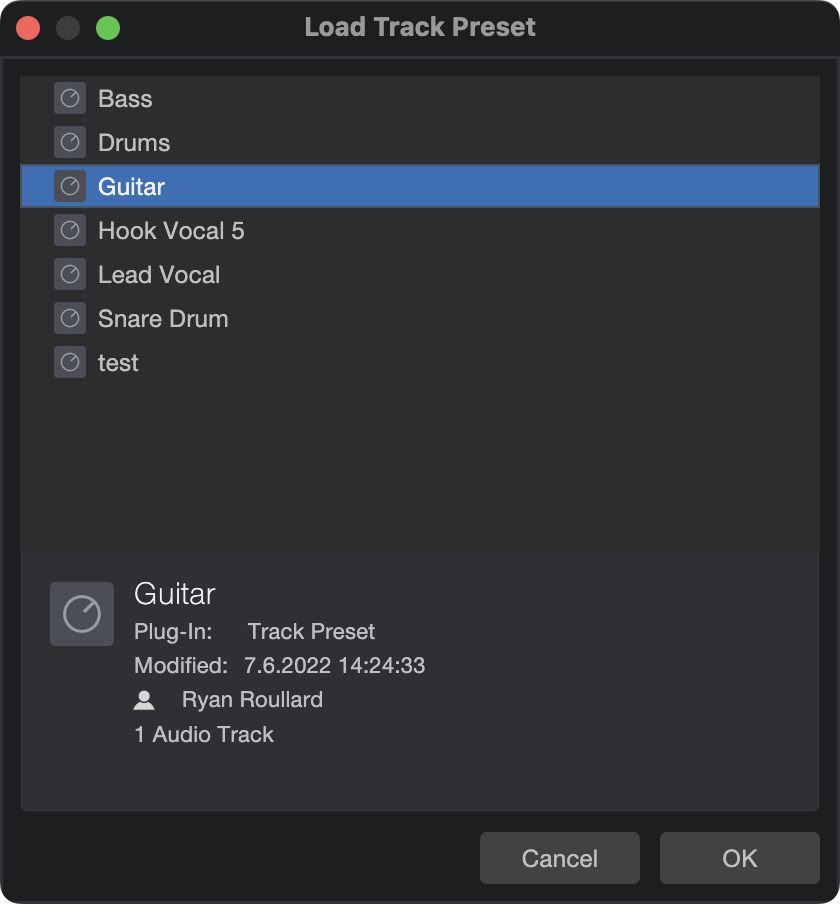
To load a Track Preset, right-click on the track header and choose Load Track Preset from the contextual menu. Alternatively, you can also apply a Track Preset to a Channel by right-clicking the Channel and choosing Apply Track Preset.
-
To update a Track Preset, right-click on the track header and choose “Update Track Preset” from the contextual menu. Alternatively, it is also possible to update Track Presets by holding [Alt]/[Opt] and dragging Tracks to existing Track Presets in the Browser. Please note that factory presets cannot be updated.
-
Note: When trying to update a single track or a multi-track selection that doesn’t match the Track Preset it was derived from, a dialogue window with two options will appear: you can either “Keep Original” (updating all tracks from the preset–even if just one track is selected) or “Update” (saving the current track selection within the Track Preset).
-
Alternatively, Track Presets can be applied from the Browser via Drag and Drop. By default, Track Presets are stored in Studio Pro/Presets/User Presets/Track Presets.
If you’d like to drag and drop multiple Track Presets at once, simply press [Ctrl]/[Cmd]+click onto the presets you’d like from the Browser and drag the selected presets into the arrangement.
Track Presets can be used to store and recall all aspects of a Track: names, instruments, routing, pan, levels, and any variables that can be set in the Inspector.
-
Note: Track Presets do not store Note Events, Audio Clips, Event FX, or Automation.
Track Presets also work with folder tracks, meaning an entire group of Tracks, including their Bus and FX Channels, can be saved as a single Track Preset! This can prove very useful for multi-channel drums.
Additionally, loading multiple Track Presets that contain identical FX Channels will create a single instance of the FX Channel to be shared. This feature helps you avoid creating redundant FX Channels.